Features
Depth-sorted object list
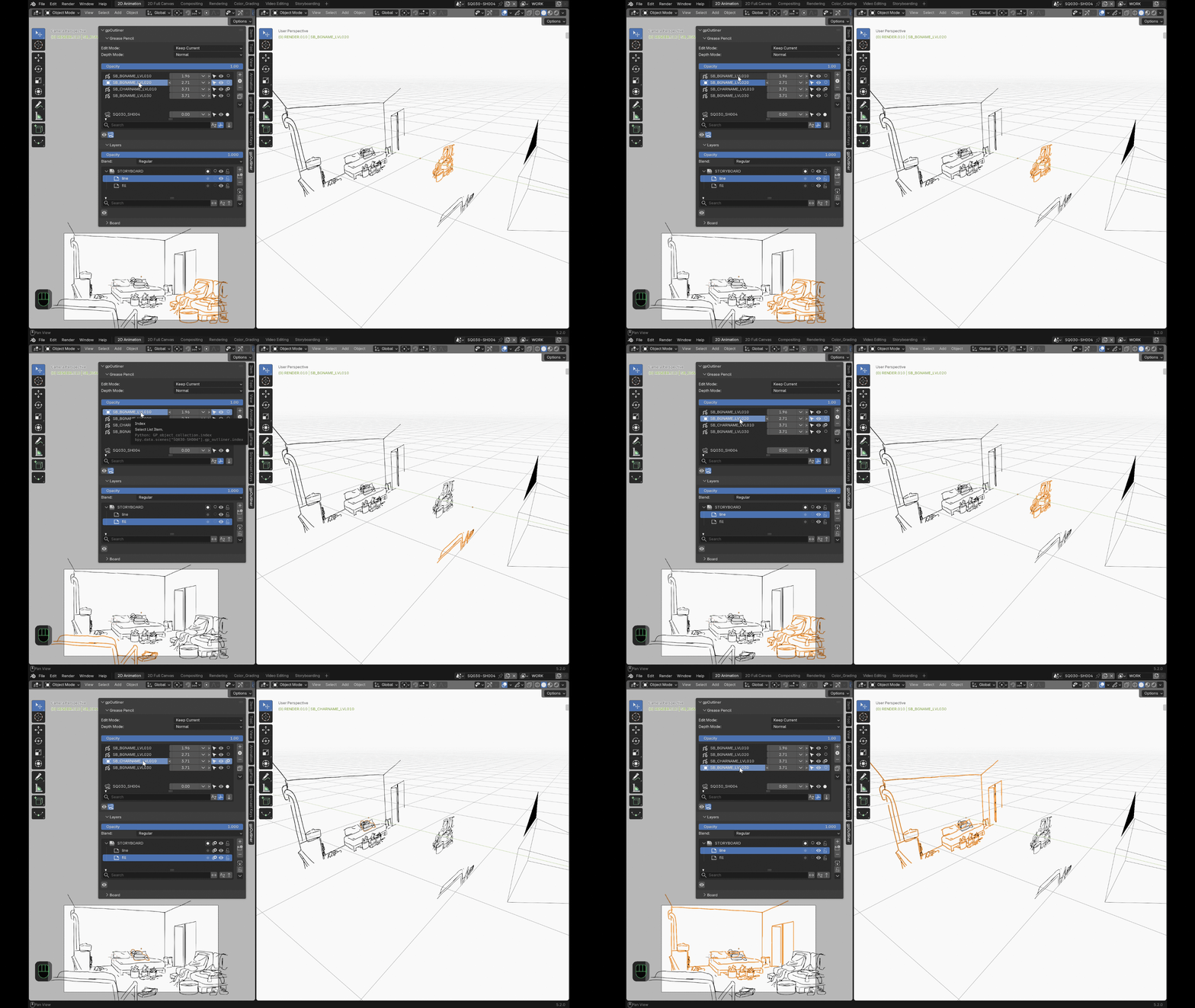
Sort your Grease Pencil objects by distance to the camera, not just
alphabetically — there's no native way to do this in Blender; gpOutliner
computes it live along the camera's own facing direction. By default the
closest object sits at the top of the list, like layers in a 2D drawing
app. A per-row widget lets you drag horizontally to adjust, use the </>
buttons for ±1, or type an exact value.
Depth mode
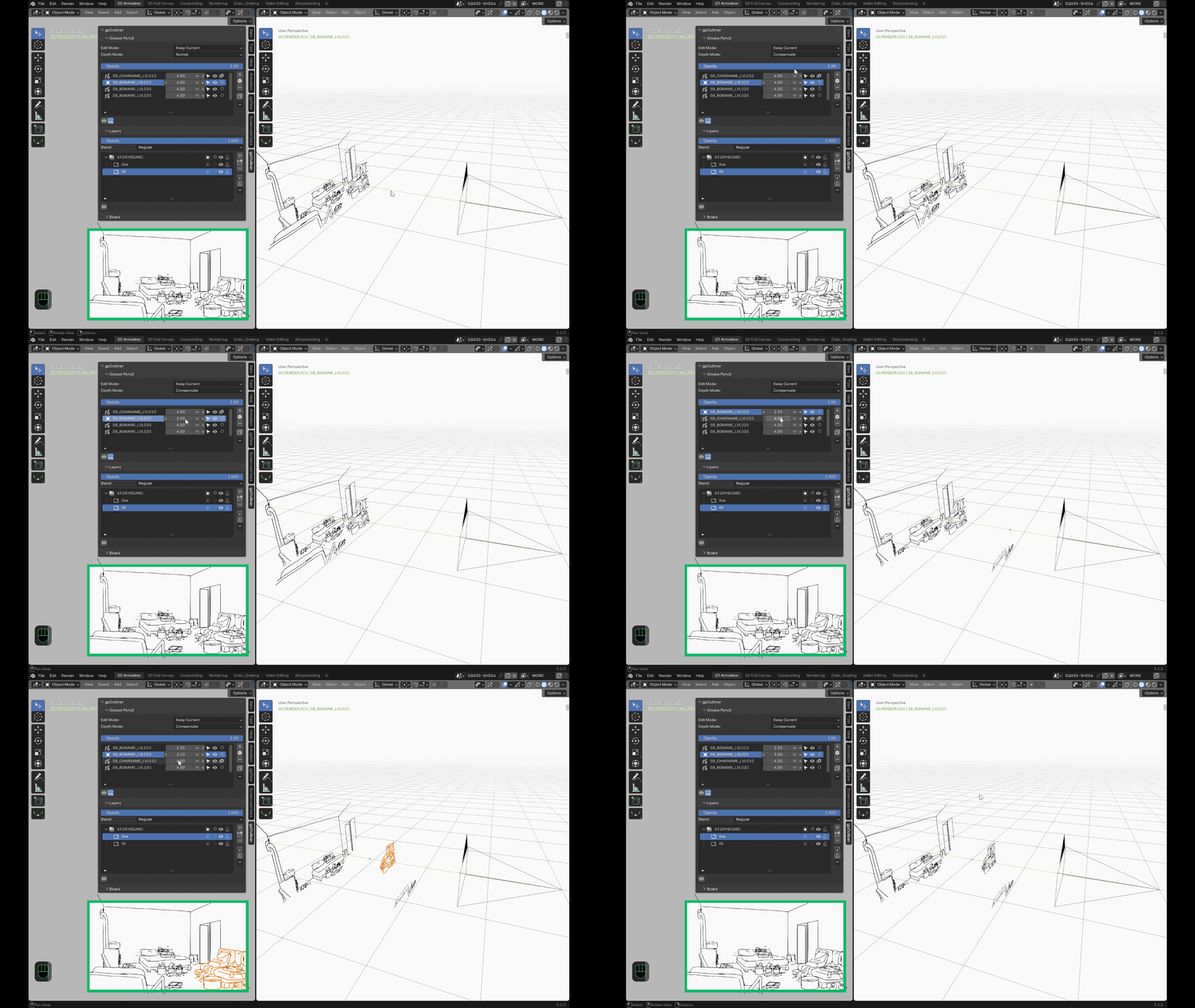
Two ways to move an object's depth with that same widget:
| Mode | Dragging the depth... |
|---|---|
| Normal (default) | ...just moves the object — its on-screen size changes the way any object's would as it gets closer to or further from the camera. |
| Compensate | ...also adjusts the object's scale automatically to keep its apparent size on screen constant. |
Edit modes
Choose how gpOutliner handles the current edit mode when you switch which Grease Pencil object is active in gpOutliner's own Grease Pencil list:
| Mode | Switching to another object... |
|---|---|
| Keep Current (default) | ...keeps whatever mode you were already in (e.g. stay in Draw mode). |
| Remember Last | ...restores whichever mode you last used on that object, independently for each one. |
Opacity & isolation
- Global opacity per object — one slider that fades every layer of a drawing together while preserving each layer's relative opacity, instead of having to touch each layer by hand. Each layer also keeps its own native opacity and blend mode, available in the same Layers panel.
- One-click isolation — hide every other Grease Pencil object, or every other layer on the current one. Turn it off and everything comes back exactly as it was.
Camera tools
- Optional camera list in the same panel — visibility, selectability, active-camera switching, and quick local-Z positioning.
- Camera background images — Blender's own background-image stack for the active camera, managed from the same panel instead of the Camera Properties tab: add an entry, pick its image via the folder icon, toggle its visibility, flip it between drawing in front of or behind 3D objects, reorder the stack, and adjust the active entry's opacity.
- Child Of constraint, one click — rigidly parents a drawing to the active camera (a real Blender constraint, just applied and named for you).
Boards (2D/3D drawing contexts)
A board is a dedicated camera that one or more drawings belong to, so you can flip the whole group flat for comfortable, distortion-free 2D drawing, then snap back to the exact 3D staging you left — no recentering, no distortion, every other object in the scene stays visually put.
- Create a board from a brand-new reference camera (always starts in the flat 2D pose), or promote any existing camera to one.
- Align to 2D and Back to 3D are two separate buttons rather than one toggle, each grayed out on its own terms: Align to 2D needs a board with at least one drawing that isn't already in the 2D pose; Back to 3D needs a previous alignment to undo, and is disabled if the camera was moved by hand since — restoring would otherwise discard that manual position. The panel also states the camera's current 2D/3D status directly, and shows the reason whenever a button is grayed out.
- A board's own panel lists its member drawings (add the current selection, remove one at a time) and its 2D distance — how far along the view axis the flat drawing plane sits once aligned, tuned per board. It only comes into play when you actually align to 2D (or create a new reference camera, which starts at that distance already).
- Switching which board you're looking at also switches the scene's active camera.
Smart stroke operations
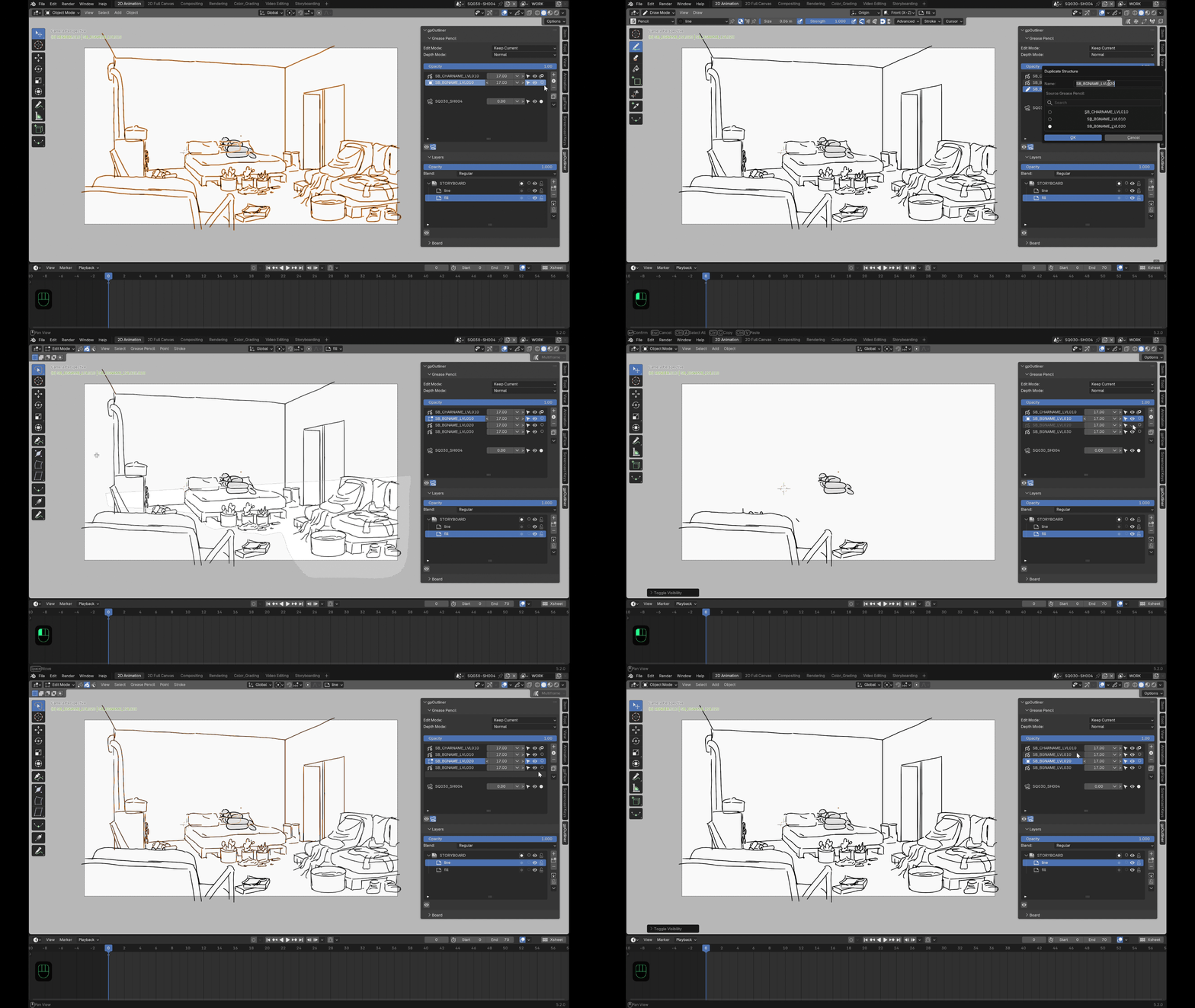
- Duplicate Special keeps you in your drawing mode across the duplicate.
- Separate Special lifts a selection straight into a new object.
- Move to Special sends selected strokes to any other object and layer you pick from a searchable list.
Structure duplication
A dedicated "+" button next to the object list duplicates an existing Grease Pencil's layer and group hierarchy without copying a single stroke: pick any object in the scene as the source from a searchable list (not just the active one), name the result, and gpOutliner duplicates it whole, then clears every layer down to one empty frame at the playhead — ready for a fresh drawing on the same rig, and switches you straight into Draw mode to start it.